In post 2 we put a web app on the internet. Almost every app also needs somewhere to keep files: images, uploads, backups, logs. In Azure, that place is a storage account.
This post creates one, puts a file in it, and then works through the three ways to reach that file. Two of them use keys, and one of them is the way you should actually use. Along the way you’ll hit an error that surprises nearly everyone: as the subscription Owner, you’re still not allowed to see your own files.
By the end you will have:
- a storage account with sensible, low-cost settings,
- a private container with a file in it,
- shared the file with a time-limited link, then broken that link on purpose,
- given yourself the right role to read data without any key,
- deleted everything, for well under a cent.
1. What a storage account is
A storage account is one resource that gives you four kinds of storage under a single name:
| Service | What it stores | Typical use |
|---|---|---|
| Blobs | Files of any kind (“binary large objects”) | Images, documents, backups, static websites |
| Files | Network file shares (SMB/NFS) | Replacing an on-premises file server |
| Queues | Small messages | Passing work between parts of an app |
| Tables | Simple key-value rows | Cheap, schema-less data |
This post is about blobs, which are by far the most common. Blobs live in containers, which work like top-level folders:
storage account   stlearnazurevgdev
└── container     documents
    └── blob      hello-blob.txt
Every blob gets its own web address:
https://stlearnazurevgdev.blob.core.windows.net/documents/hello-blob.txtWhether that address works for someone is what the rest of this post is about.
2. Create the storage account
Search for Storage accounts and select Create. On the Basics tab:
- Resource group:
rg-learnazure-dev-eus - Storage account name:
stlearnazure<yourinitials>dev. It must be 3 to 24 characters, lowercase letters and numbers only, and unique across all of Azure, because it becomes part of a public web address. - Region: East US
- Primary service: Azure Blob Storage or Azure Data Lake Storage
Primary workload: a new shortcut
The portal now asks for a Primary workload and pre-fills settings to match it:
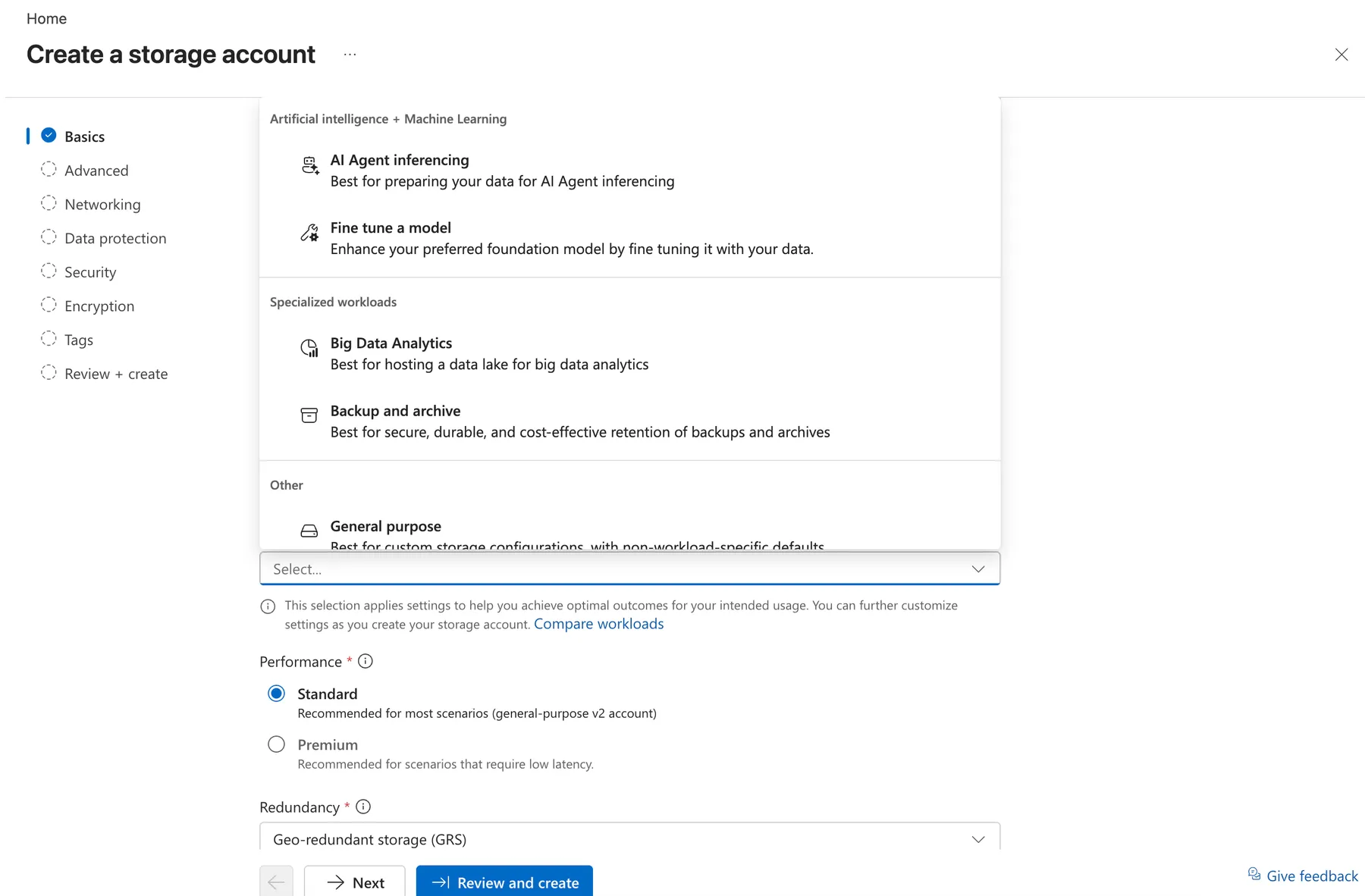
Choose General purpose. The others are fine choices for those jobs, but they change defaults you should understand first.
Redundancy: the setting that doubles your bill
Leave Performance on Standard. Then look at Redundancy. For General purpose, Azure pre-selects Geo-redundant storage (GRS) with read access ticked, which is RA-GRS:
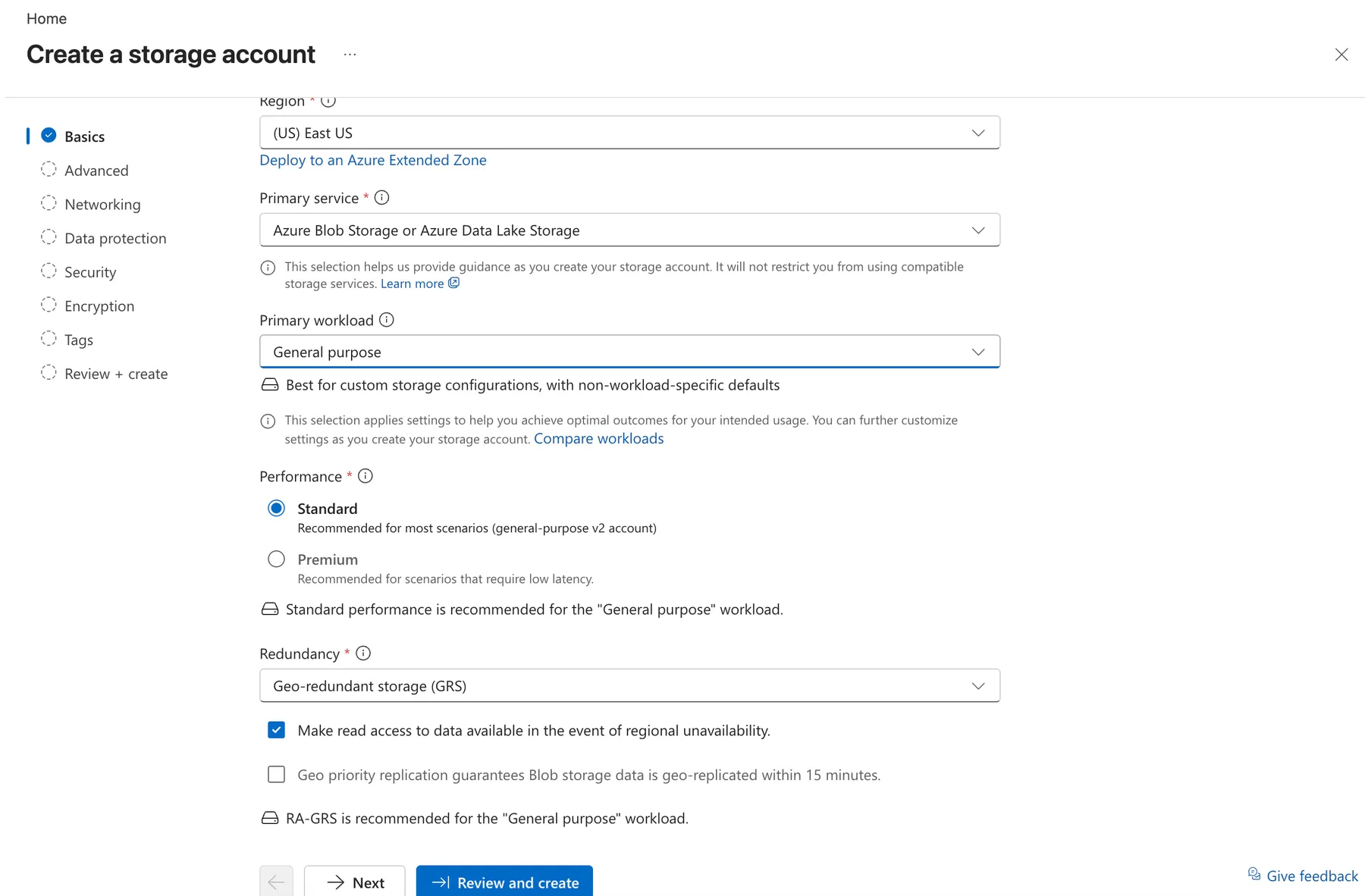
Redundancy decides how many copies Azure keeps and where:
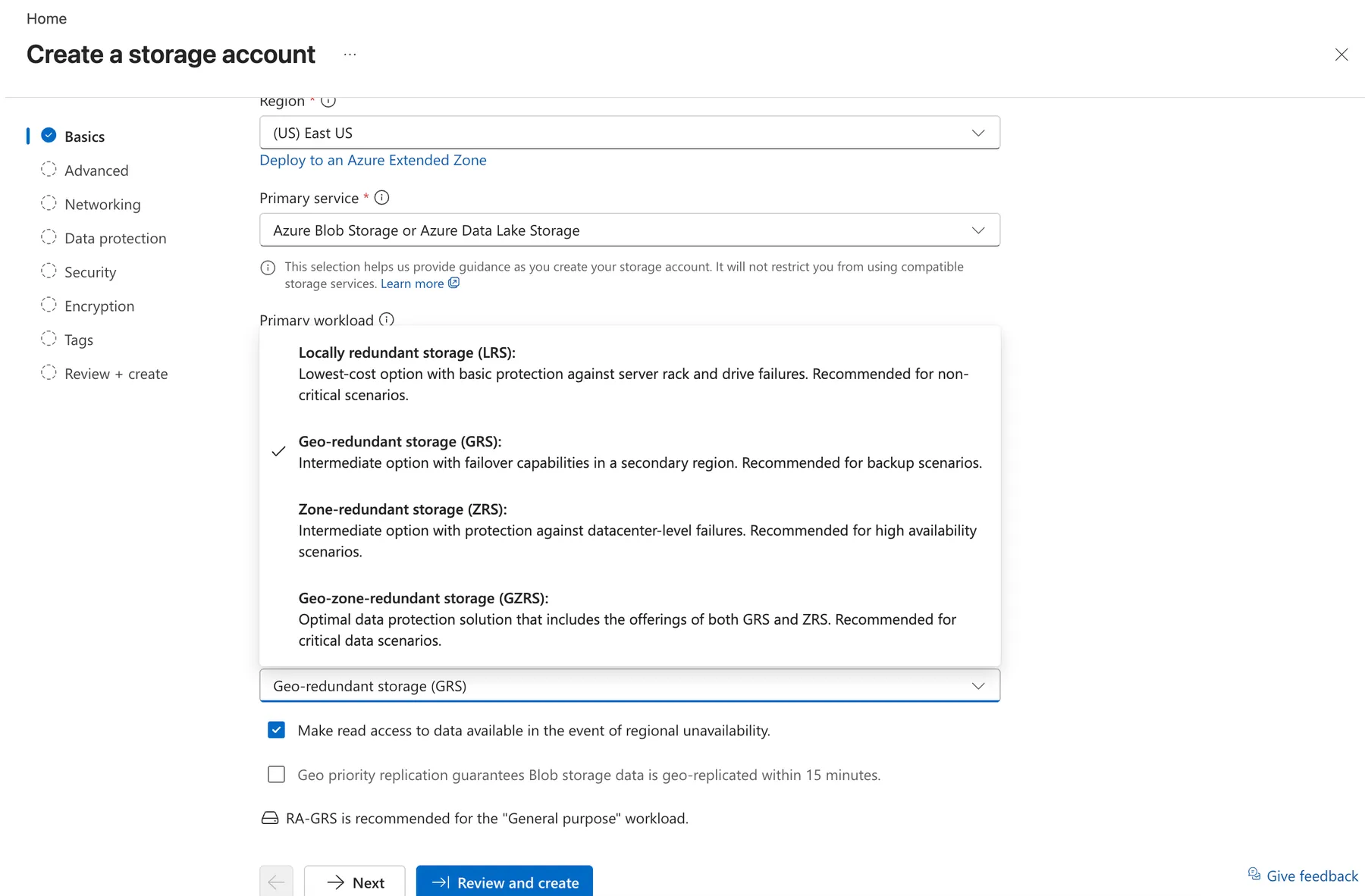
| Option | Copies | Survives | Relative cost |
|---|---|---|---|
| LRS, locally redundant | 3, in one datacenter | A failed disk or server | Lowest |
| ZRS, zone-redundant | 3, across availability zones | A whole datacenter going down | Higher |
| GRS / RA-GRS, geo-redundant | 6, in two regions far apart | A whole region going down | About double LRS |
| GZRS / RA-GZRS | 6, zones plus a second region | Both of the above | Highest |
For learning, and for anything you could recreate, choose Locally redundant storage (LRS). For important production data, a geo-redundant option is worth paying for. It’s a business decision, not a default to accept without thinking.
Advanced: access tier
On the Advanced tab, leave the Access tier on Hot:
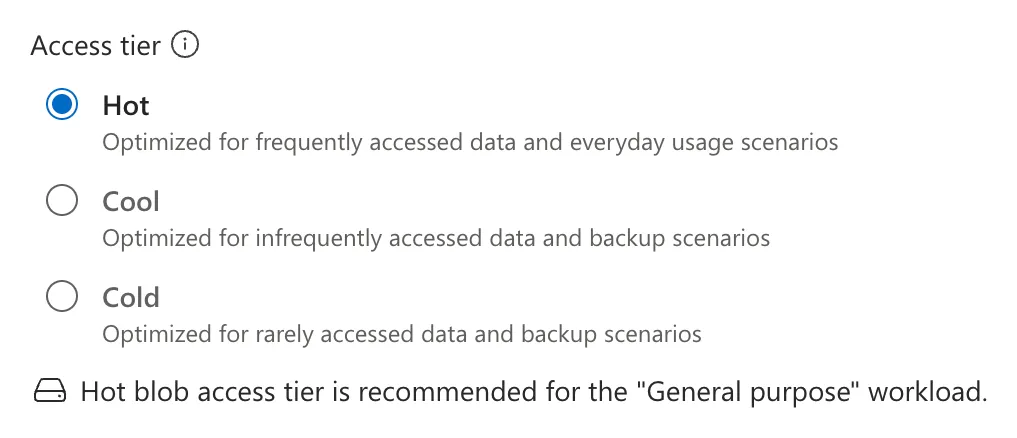
| Tier | Storage cost | Reading cost | Minimum stay |
|---|---|---|---|
| Hot | Highest | Lowest | None |
| Cool | Lower | Higher | 30 days |
| Cold | Lower still | Higher still | 90 days |
| Archive (per blob only) | Lowest | Highest, and hours to retrieve | 180 days |
Moving or deleting a blob before its minimum stay still bills the remaining days. For files you use every day, Hot is cheapest overall.
Security: two settings to notice
The Security tab has the settings this post is really about:
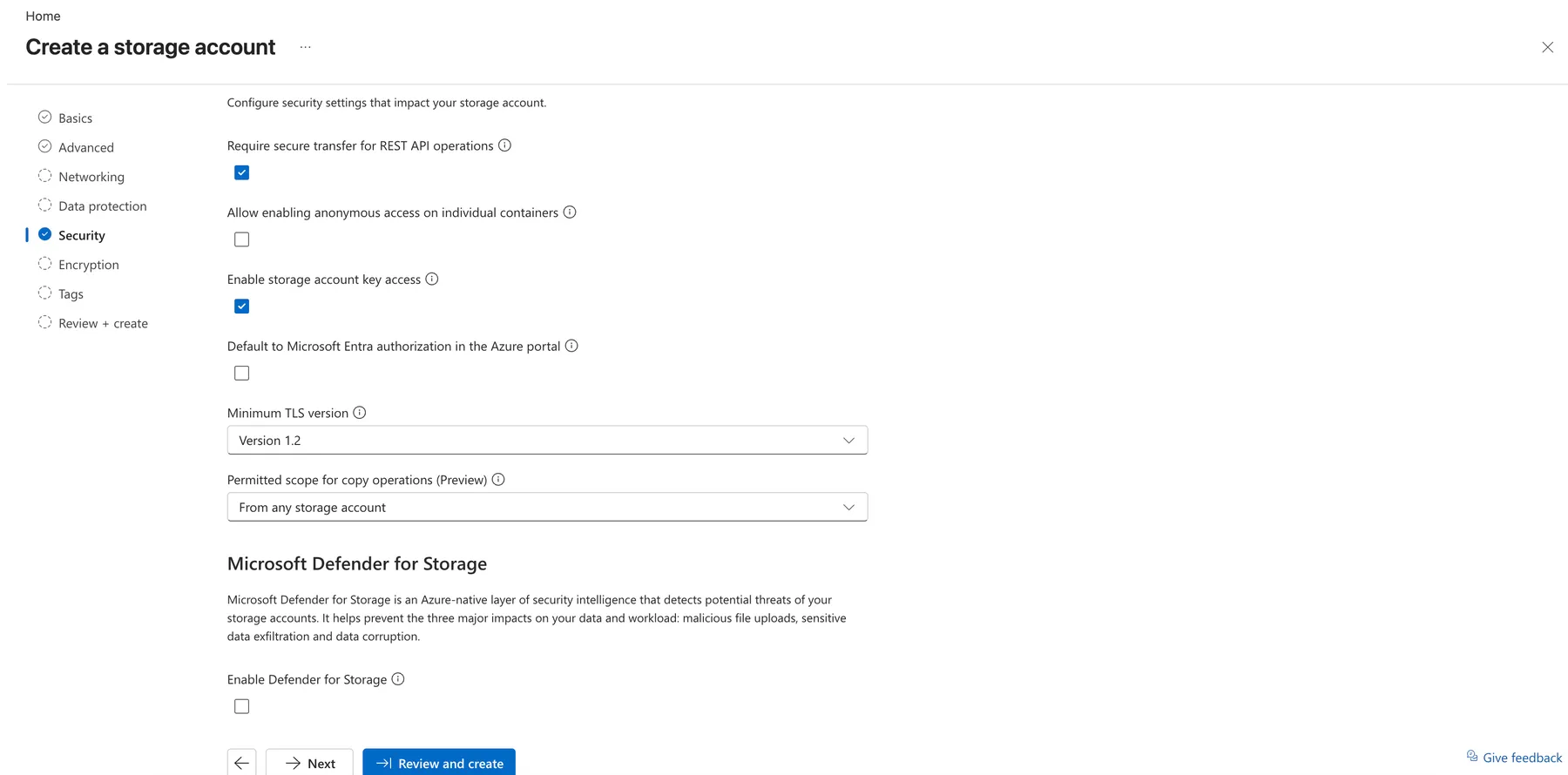
- Allow enabling anonymous access on individual containers: off. Good. Nobody can read your files without credentials.
- Enable storage account key access: on. This means two powerful keys exist for this account. We’ll see what they can do in section 5.
Also check that Enable Defender for Storage, further down, is unticked. It’s a paid add-on.
Select Review + create. The summary confirms that you changed the recommended redundancy:
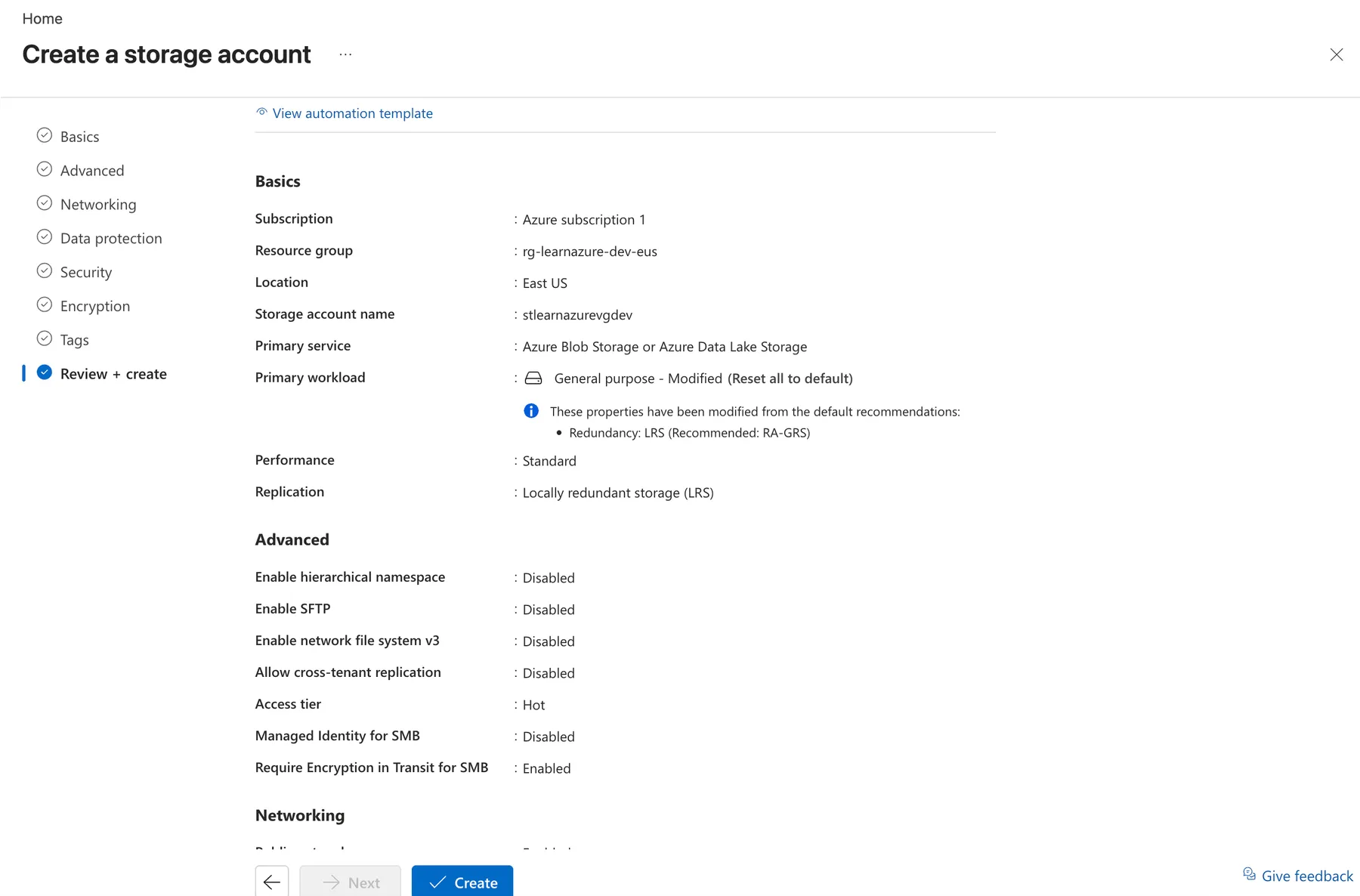
Select Create. It takes about 30 seconds.
What it costs: an empty storage account costs nothing. You pay for the data stored (around 2 US cents per GB per month for Hot LRS at the time of writing) and for each read and write, which costs fractions of a cent per 10,000 operations. A few small test files cost effectively nothing.
3. Tour the account
Select Go to resource:
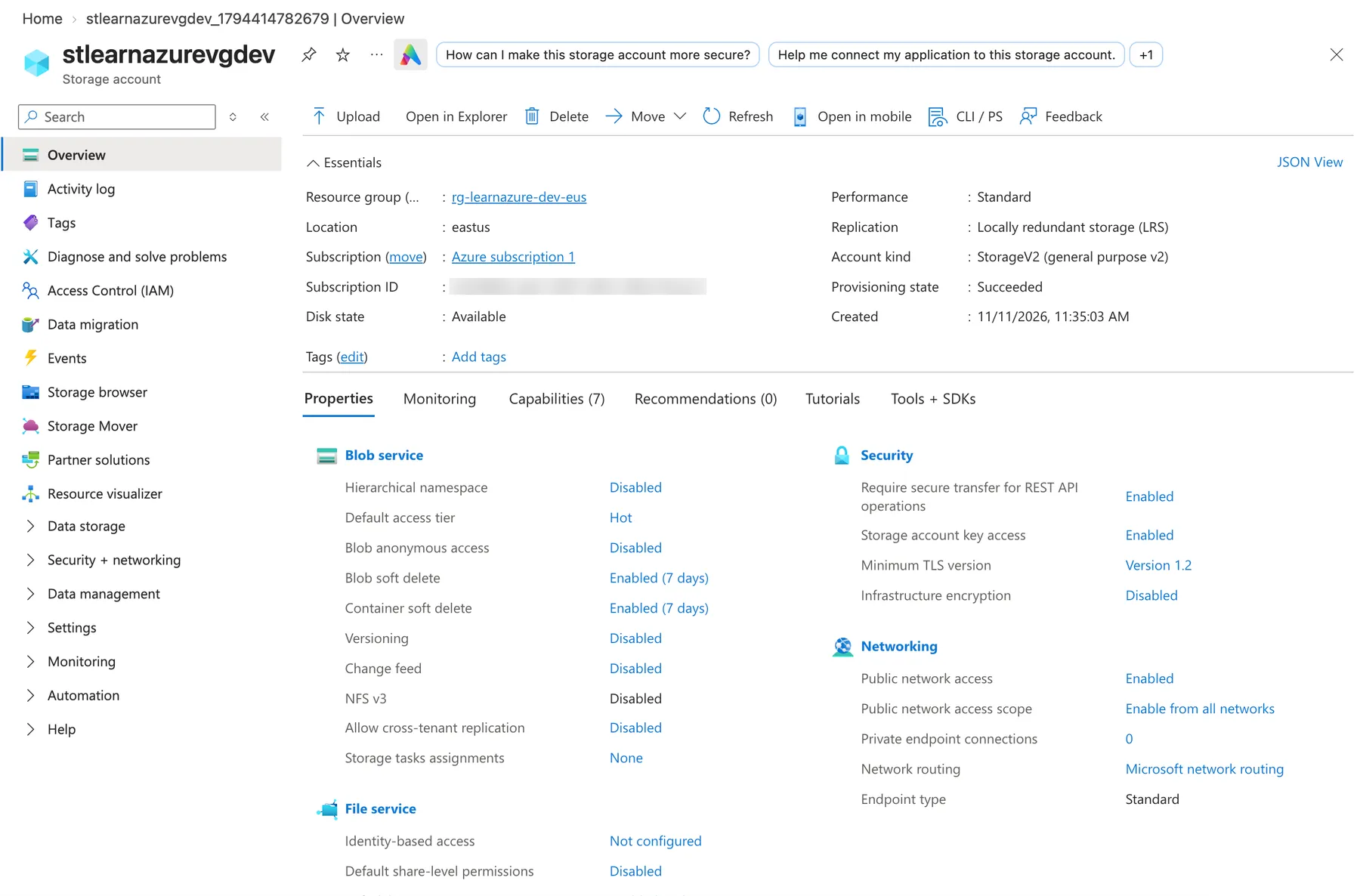
A few properties worth a glance:
- Blob anonymous access: Disabled, as chosen.
- Blob soft delete: Enabled (7 days). Deleted blobs can be recovered for a week. That’s a free safety net, so leave it on.
- Storage account key access: Enabled. Remember this one.
4. Create a container and upload a file
Under Data storage → Containers, select + Add container and name it documents. The access level is locked to Private, because anonymous access is off for the whole account:
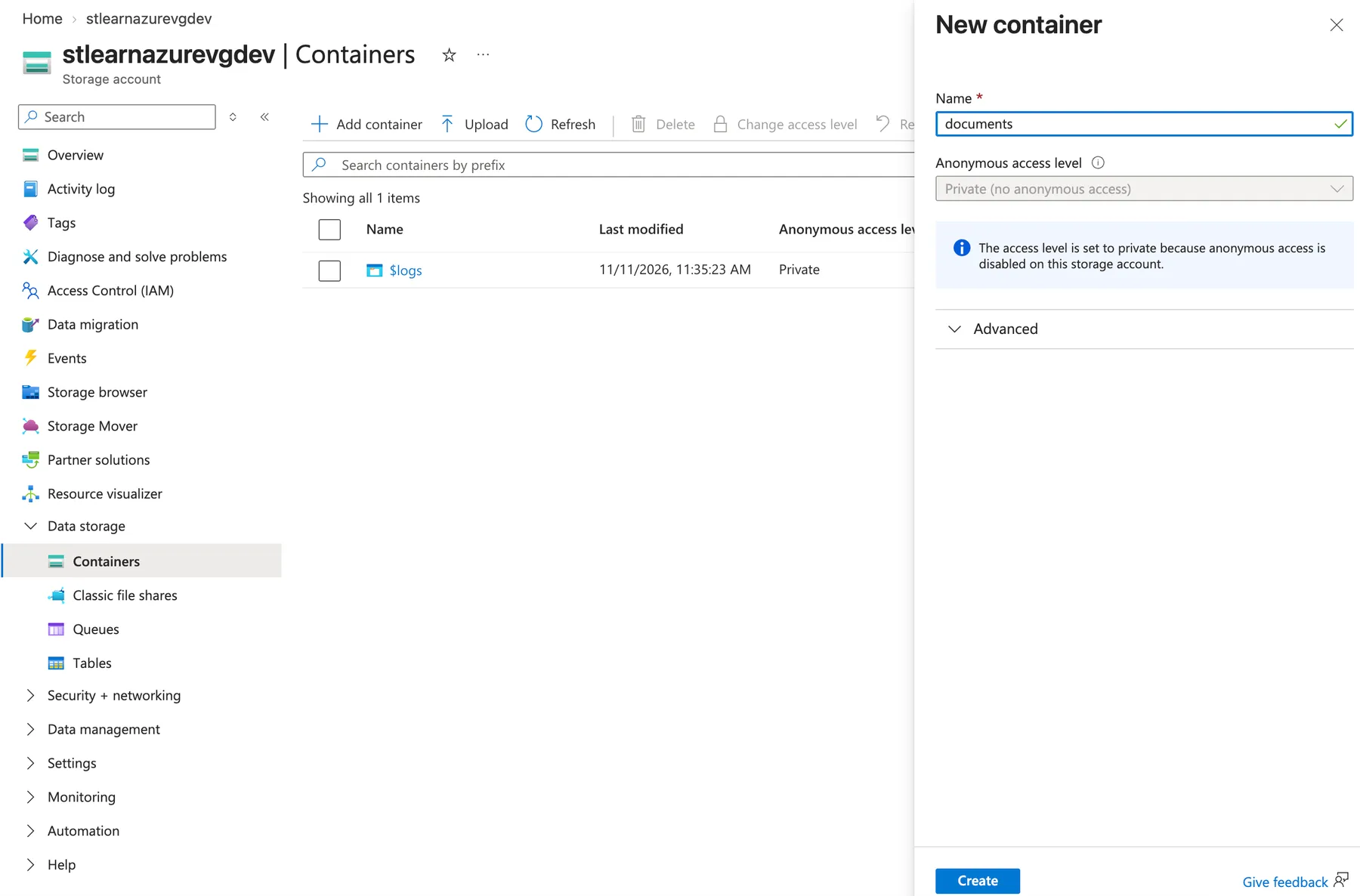
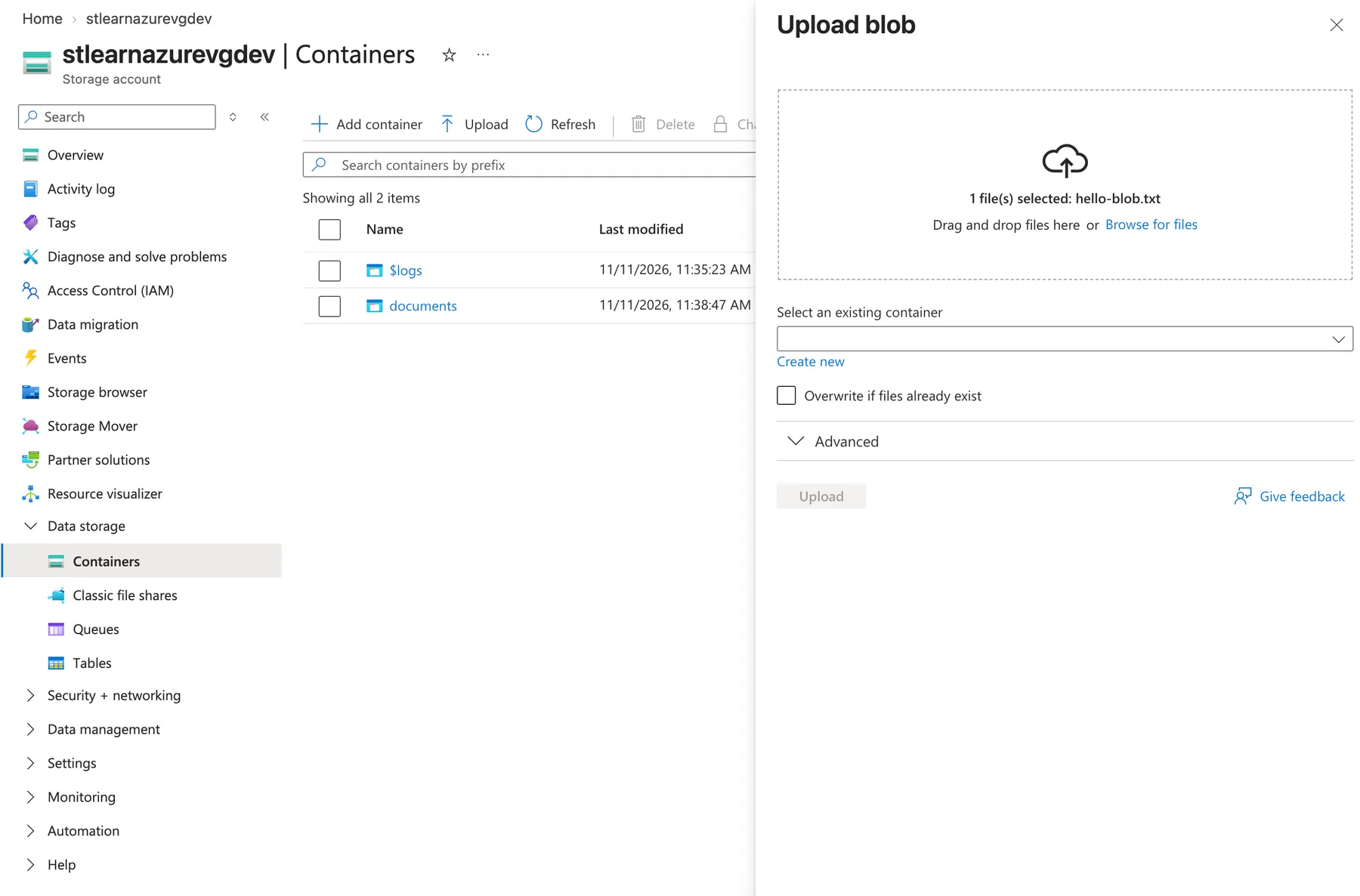
Select Create. Then open the container, select Upload, and choose any small file. I used a two-line text file called hello-blob.txt:
After the upload, the file shows in the list:
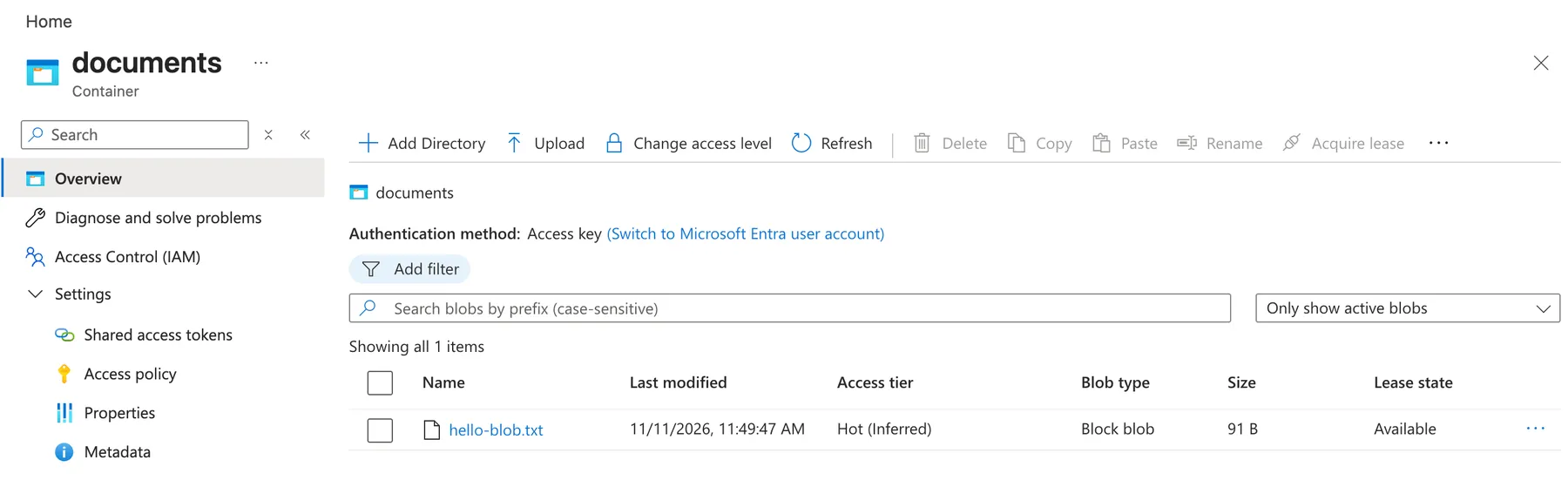
Notice the line above the list: Authentication method: Access key. The portal itself is reading your files with the account key. Keep that in mind.
5. Three ways to reach a blob
Way 1: just open the URL (blocked)
Copy the blob’s URL from its Overview and open it in a new browser tab:

PublicAccessNotPermitted. That’s exactly what you want. The URL is public; the data is not.
Way 2: a SAS link (a temporary pass)
A shared access signature (SAS) is a URL with a signed permission slip on the end: read only, this file only, until 8 PM, over HTTPS only. Open the blob, select Generate SAS:
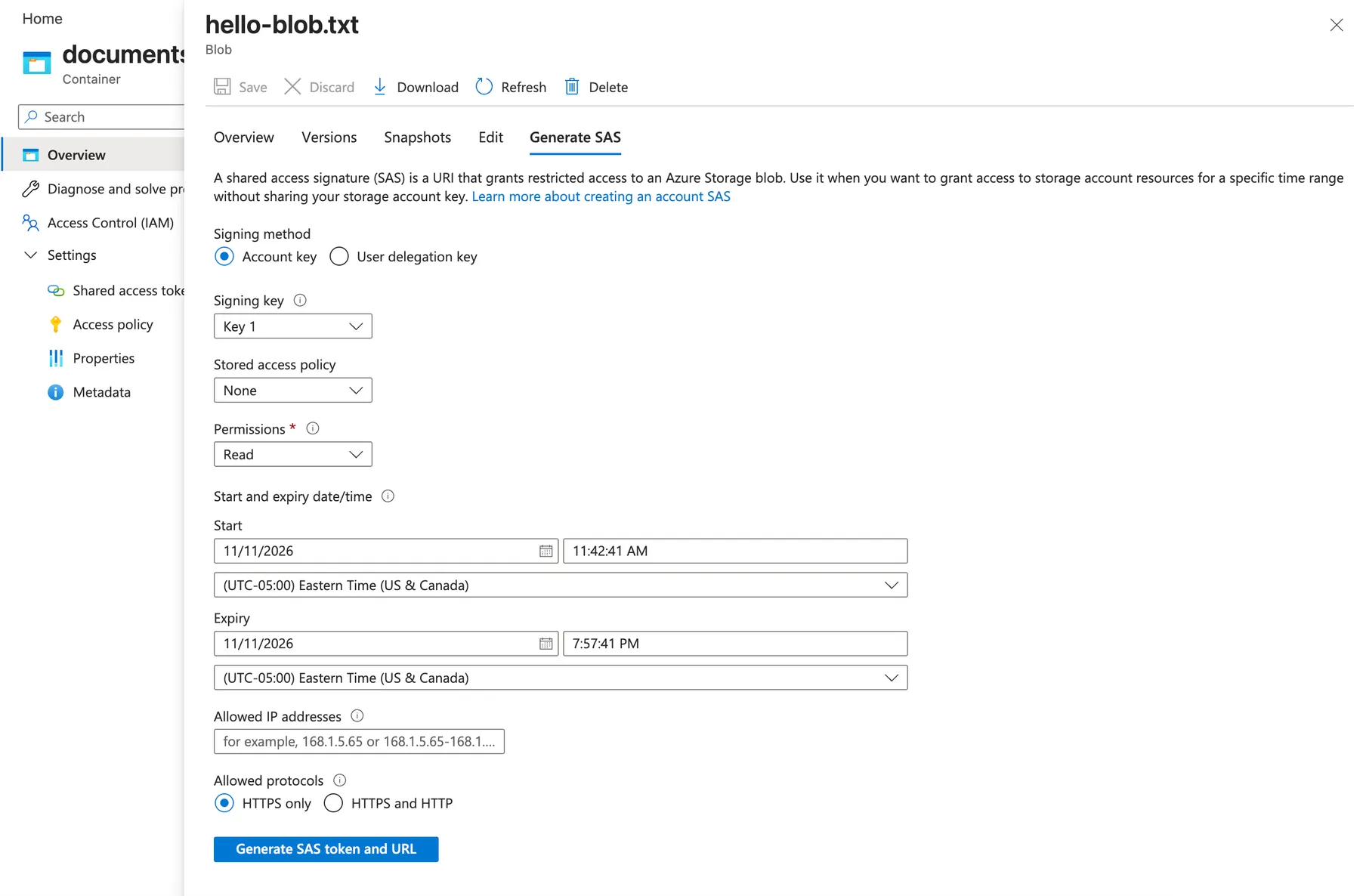
Select Generate SAS token and URL. Azure gives you a token and the full link:
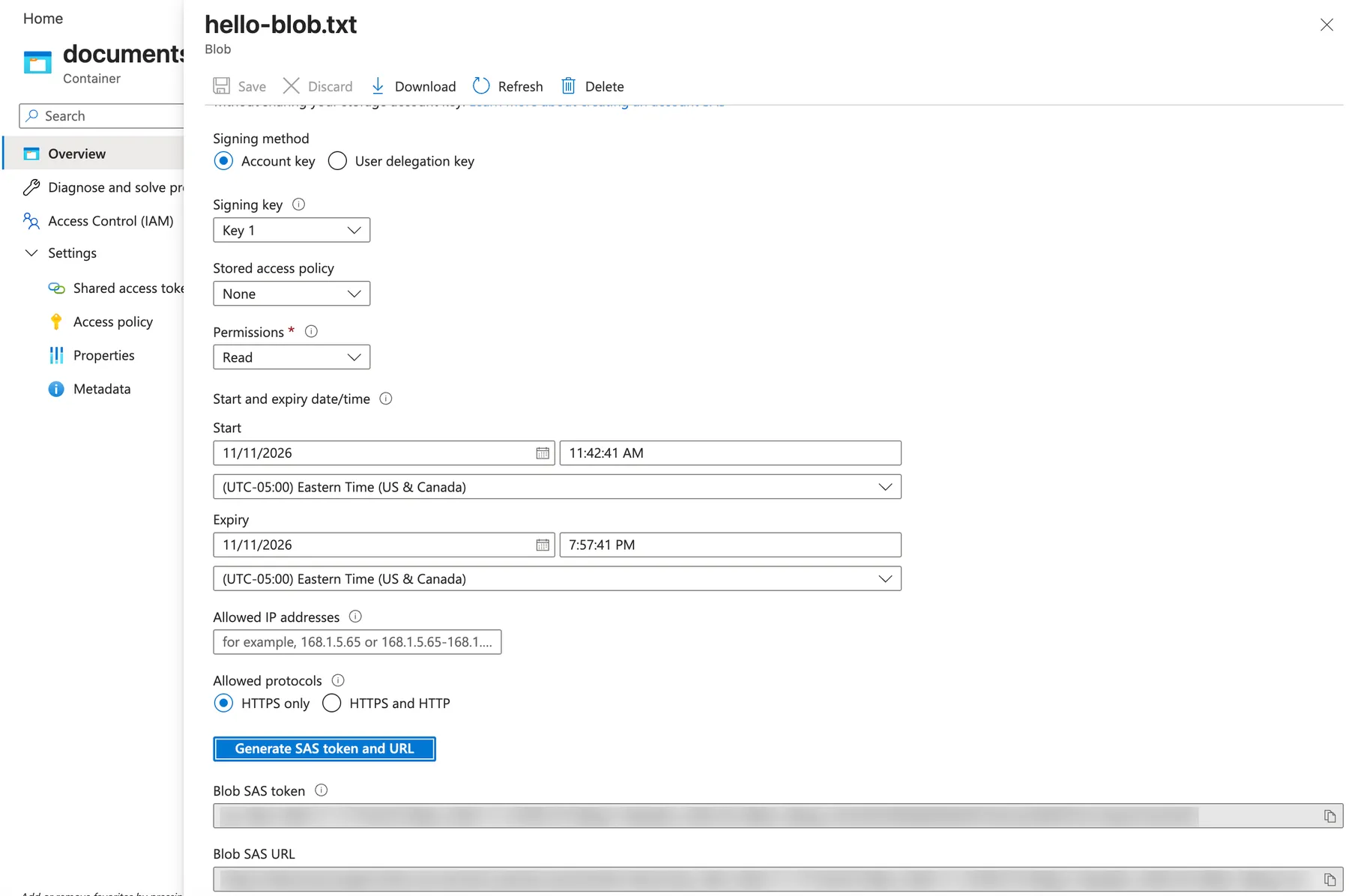
Open the Blob SAS URL in a new tab, and the file appears:

That’s useful for sharing one file with someone for a few hours. But look at the form again: Signing method: Account key, Signing key: Key 1. The link is only as trustworthy as the key that signed it.
What an access key really is
Open Security + networking → Access keys:
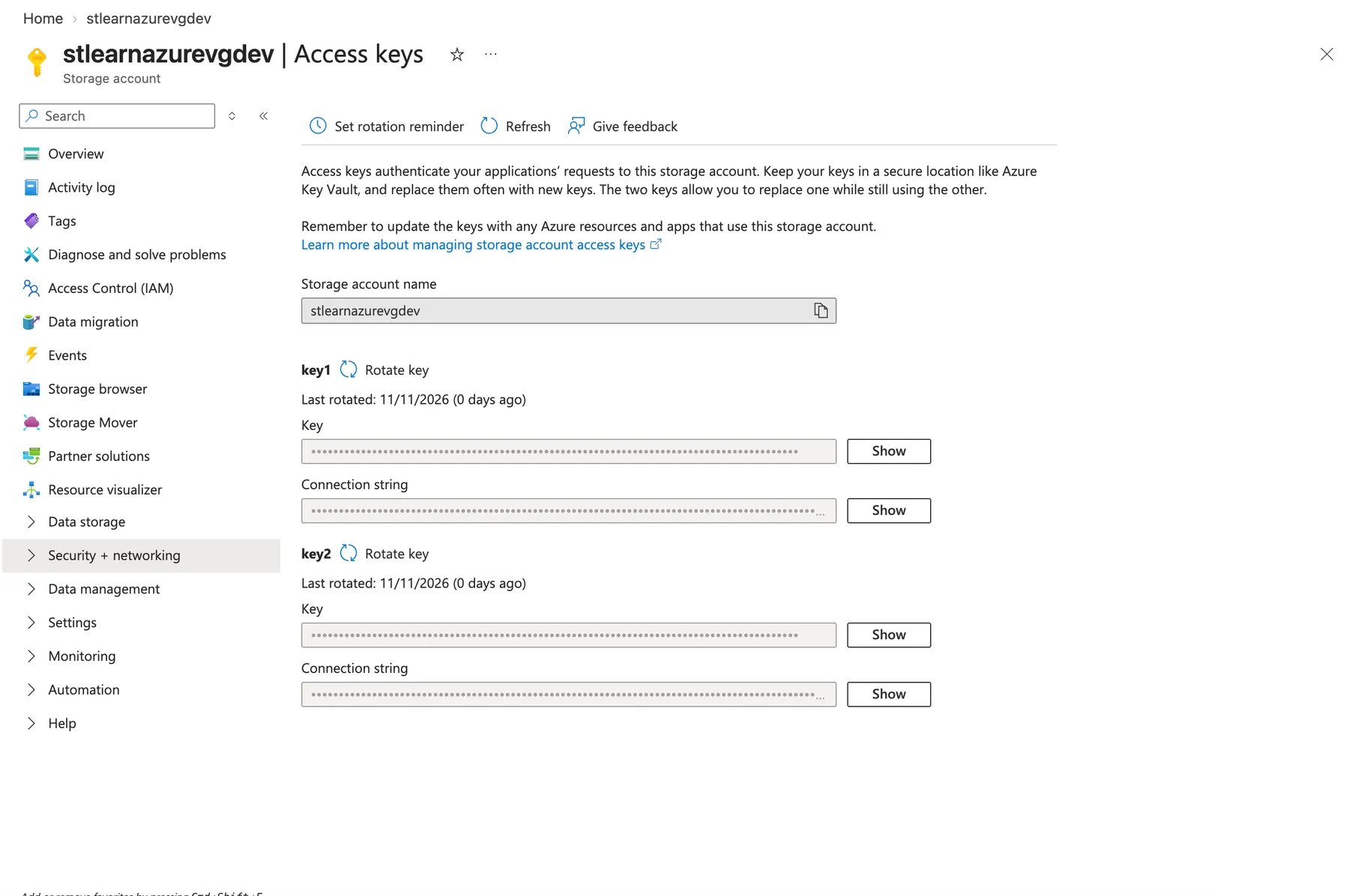
Each storage account has two keys. Either one gives full control of every piece of data in the account: read, write and delete everything, forever, from anywhere, with no sign-in and no record of who used it. It’s a master password that doesn’t expire.
There are two so you can swap them without downtime: move your apps to key2, rotate key1, and the reverse next time. Let’s rotate key1 now:
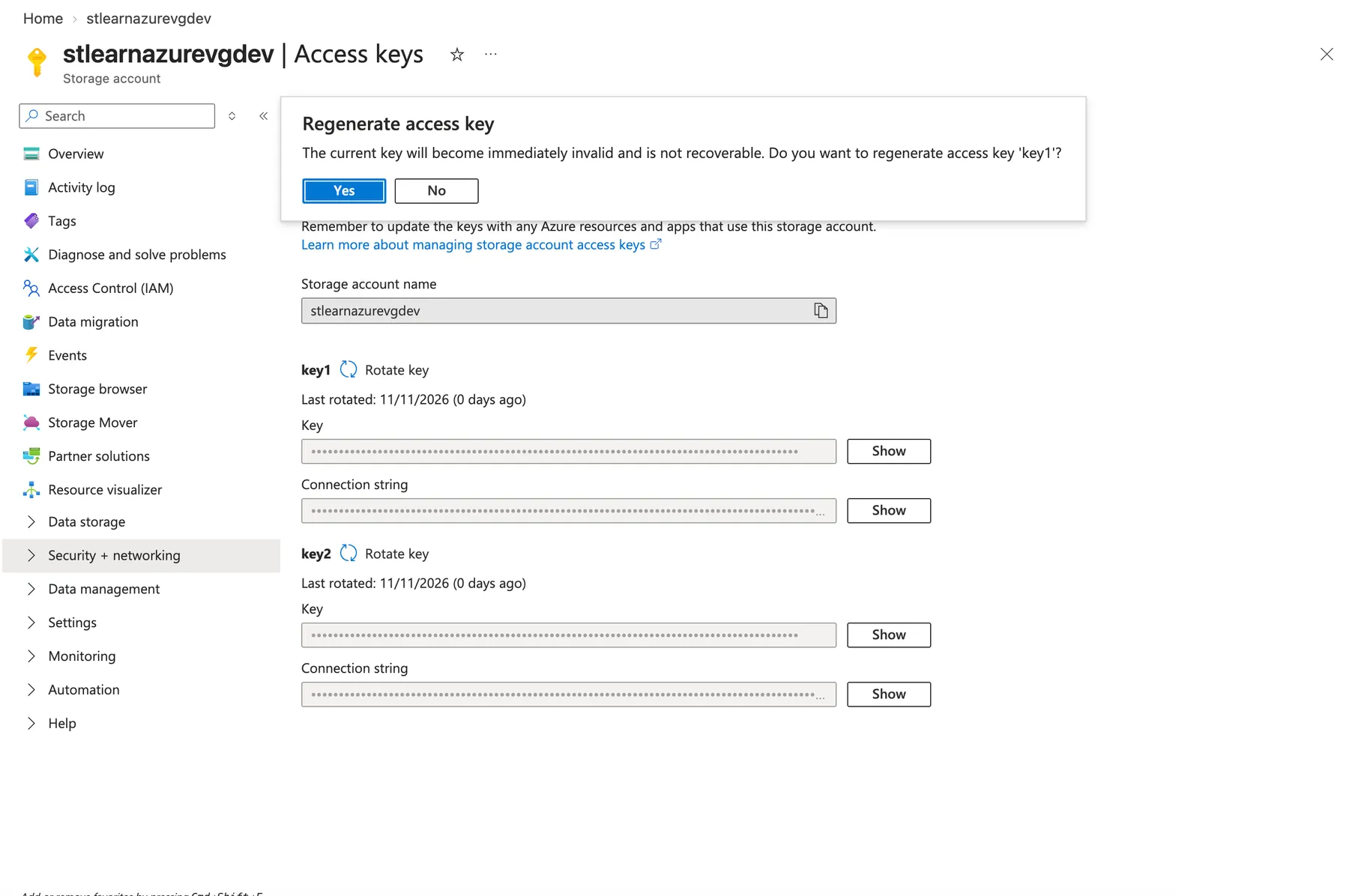
Select Yes, then refresh the tab with your SAS link:

AuthenticationFailed: Signature did not match. Every SAS link signed with key1 died the moment the key changed. So did every app, script or colleague using key1.
That shows the two problems with keys:
- If a key leaks, everything leaks. One key in a public GitHub repo, a screenshot or a config file exposes the whole account.
- Fixing a leak breaks things. Rotating the key cuts off everyone using it, the good and the bad, all at once.
Way 3: sign in as yourself (the right way)
Go back to the container and select Switch to Microsoft Entra user account. The portal stops using the key and uses your identity instead:
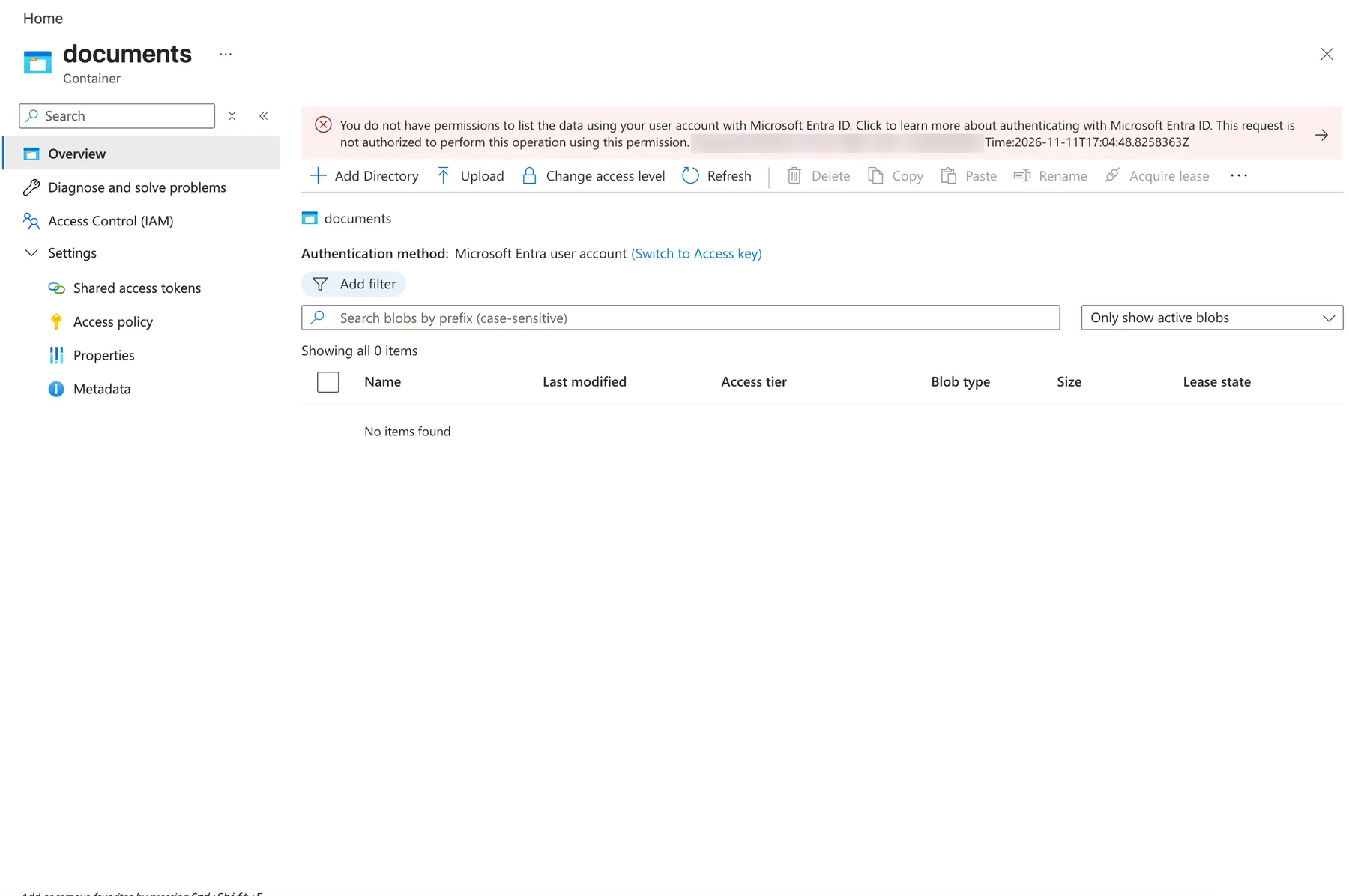
You do not have permissions to list the data. You’re the Owner of the whole subscription, so why?
Azure separates two kinds of permission:
| Kind | Controls | Example roles |
|---|---|---|
| Management (control plane) | Creating, configuring and deleting resources | Owner, Contributor, Reader |
| Data (data plane) | Reading and writing the contents | Storage Blob Data Reader, Contributor, Owner |
Owner lets you manage the storage account, including reading its keys, which is how the portal showed your files before. It doesn’t by itself give you access to the data. That separation is deliberate: the person who runs the infrastructure doesn’t automatically see what’s stored in it.
Give yourself a data role. Open the storage account’s Access control (IAM) → Add → Add role assignment and search for Storage Blob Data:
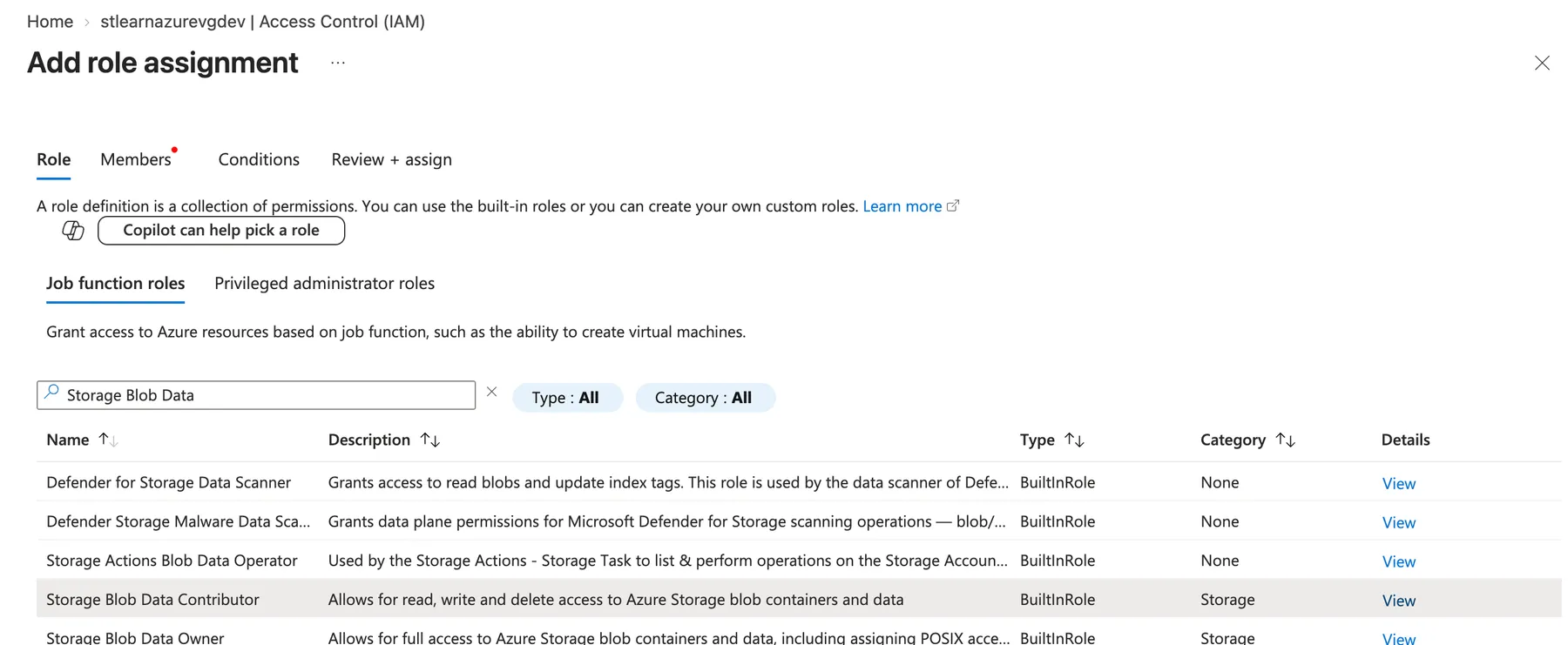
| Role | Can |
|---|---|
| Storage Blob Data Reader | Read and list |
| Storage Blob Data Contributor | Read, write and delete |
| Storage Blob Data Owner | All of the above, plus manage access settings on the data |
Choose Storage Blob Data Contributor, select Next, add yourself under Members, and review:
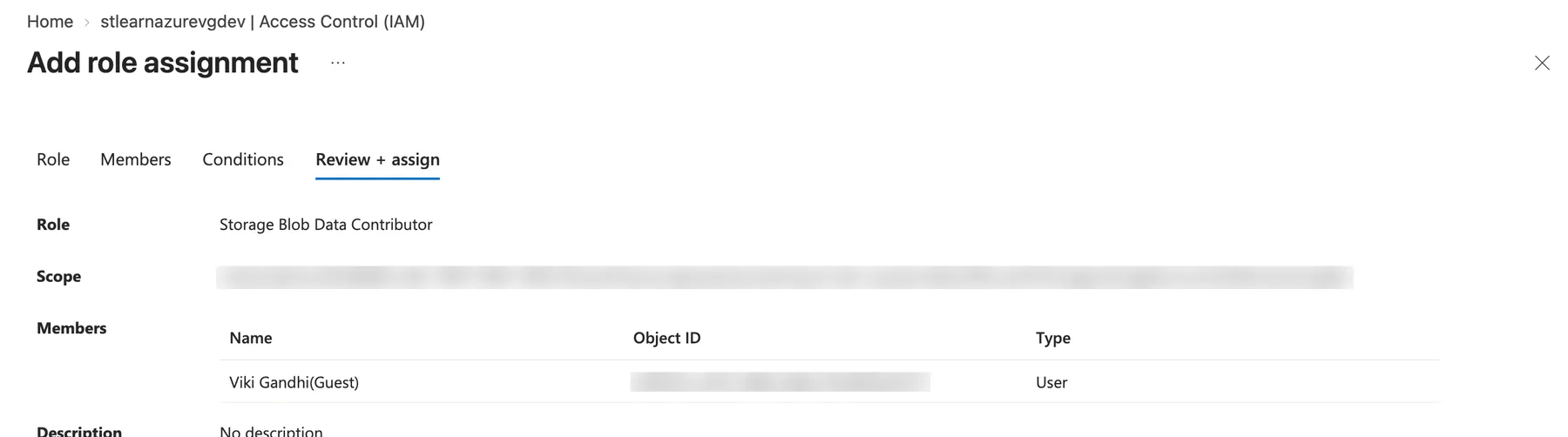
Notice the Scope: this one storage account, not the whole subscription. Always grant the smallest scope that does the job.
Select Review + assign. Role changes can take a few minutes to reach storage; mine took about 90 seconds. Refresh the container:
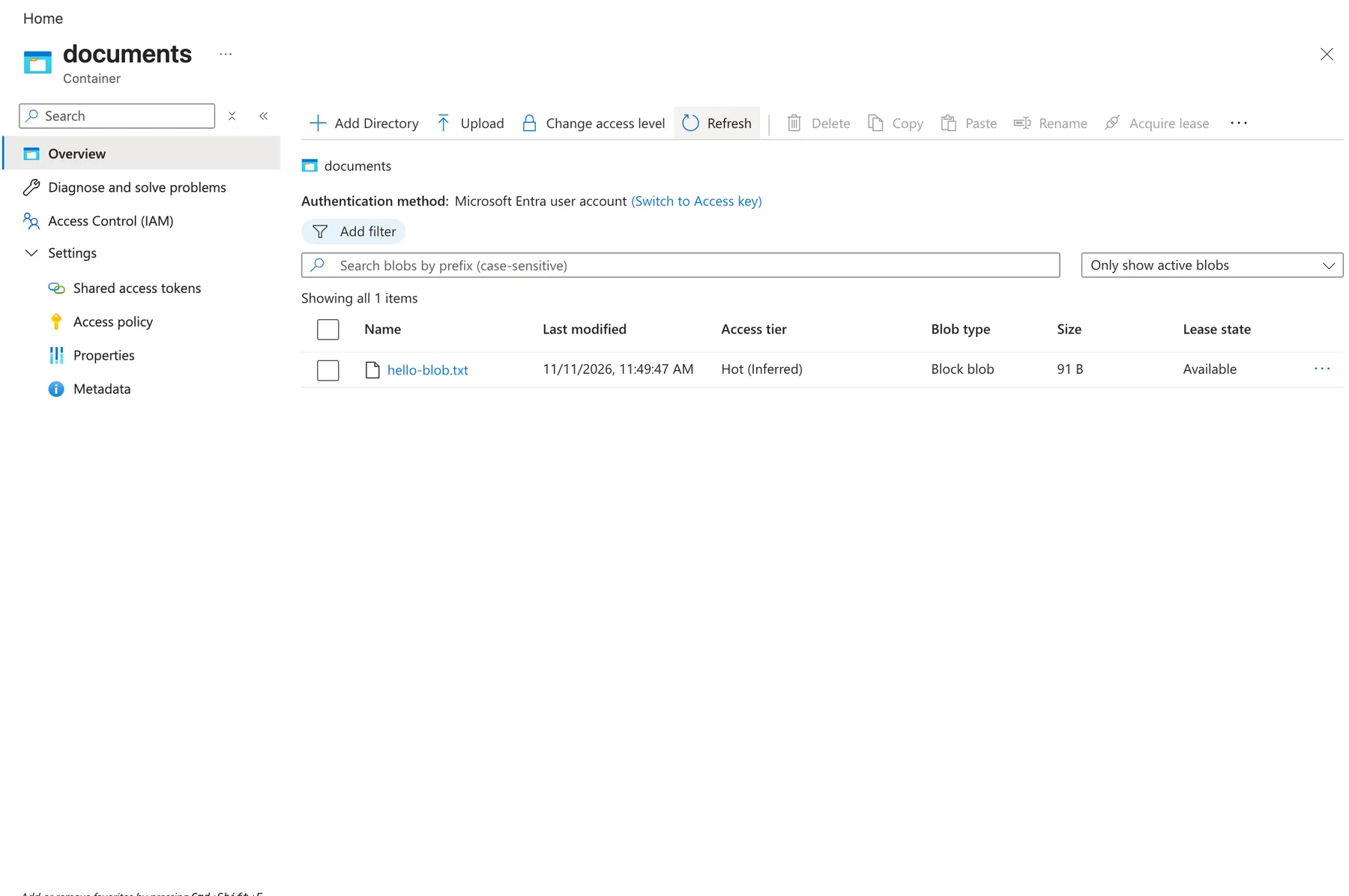
The file is back, and no key was involved. Access is now:
- tied to a person, and every access is logged against their name,
- revocable for one person without breaking anyone else,
- protected by sign-in, including multi-factor authentication.
Apps get the same benefit through managed identities, which we’ll cover later in the series. Once everything uses Entra, you can turn storage account key access off entirely and the master keys stop working.
Rule of thumb: use Microsoft Entra roles by default. Use a short-lived SAS when you must share with someone outside your organization; prefer a user delegation SAS, which is signed with your Entra identity rather than an account key. Treat account keys as an emergency tool, never as a way to hand out access.
6. Clean up
Delete the storage account. It removes the containers, blobs and role assignment with it:
az storage account delete -n stlearnazure<yourinitials>dev -g rg-learnazure-dev-eus --yesOr use Delete on the account’s Overview page and type its name to confirm. Keep the empty resource group for the next post.
My whole session cost well under one cent.
Quick check
1. Azure pre-selects RA-GRS for a general-purpose account. When is LRS the better choice?
When you could recreate the data or losing a region is an acceptable risk: learning, testing, caches and copies. LRS costs roughly half as much. Pay for geo-redundancy when the data is important and irreplaceable.
2. You rotate key1. What happens to SAS links that were signed with it?
They stop working immediately with “Signature did not match”, as do any apps using key1. Links signed with key2 keep working.
3. You’re the subscription Owner but can’t list blobs when the portal uses your Entra account. Why?
Owner is a management role. Reading blob contents needs a data role such as Storage Blob Data Reader or Contributor, assigned at a scope that includes the account.
4. Why is an account key riskier than a role assignment?
A key gives full access to all data in the account, never expires, isn’t tied to a person, and can’t be revoked for one user without breaking everyone else who uses it.
What’s next
Level 1, post 4: Reading your bill before it surprises you. We’ll open Cost analysis, find what the last three posts actually cost, and set up views that make a surprise charge easy to spot.
Further reading
- Storage account overview (Microsoft Learn)
- Azure Storage redundancy (Microsoft Learn)
- Access tiers for blob data (Microsoft Learn)
- Grant limited access with shared access signatures (SAS) (Microsoft Learn)
- Authorize access to blobs using Microsoft Entra ID (Microsoft Learn)
- Prevent Shared Key authorization (Microsoft Learn)
- Azure Blob Storage pricing (Microsoft)